Do you want to create a professional business email address for free? A business email address uses your company name instead of the generic gmail or yahoo account. In this article, we will show you how to easily create a free business email address in less than 5 minutes.

What is a Business Email Address and Why You Need it?
A professional business email address has your company name instead of the generic gmail or yahoo account, for example: john@stargardening.com
Most beginners use generic free business email accounts without a domain name which isn’t very professional. For example: john.smith2019@gmail.com or jsmithfromstargardening@yahoo.com.
Since anyone can create these generic email accounts, it becomes harder for customers and other businesses to trust such email addresses as legitimate business email accounts.
Below are the top 4 reasons why you need a professional email address for your business:
- A custom business email address looks more professional.
- It is also short and easy to remember.
- A professional business email address helps you earn customer’s trust as a legitimate business.
- Sending emails with your own business name allows you to promote your brand with each email you send.
The best part is that you can get your own custom business email address for free, which means there is no excuse for not getting it.
If you want your customers and other businesses to take you seriously, then you need to start using a professional business email address, immediately.
What Do You Need to Create a Business Email Address?
You will need to have domain name and a website to create a free business email address.
After that, you will need an email service provider to handle your business emails.
There are a few different solutions that you can use to create a professional business email address.
We will show you two different methods, and you can choose the one that best fits your needs.
The first method is free and fairly easy to setup whereas the second method has a small fee, but it offers a lot more features.
Method 1. Creating a Business Email Address for Free
Google offers professional business email address with G Suite which includes Gmail, Docs, Drive, and Calendar for businesses.
This method is not free, but it allows you to use Gmail for your professional business email with your own business name.
While there’s a small cost, it comes with many advantages:
- You will be using Gmail’s familiar interface and apps to send and receive emails.
- Google has far superior technology which ensures that your emails are delivered right away, and they don’t end up in spam folders.
- Your website hosting company has shared server resources. This means they don’t want you to send too many emails. Gmail on the other hand will allow you to send up to 2000 emails per day.
We use G Suite for our business email address here at WPBeginner.
That being said, let’s take a look at how to setup a business email address using G Suite.
Step 1. Sign up for a G Suite Account
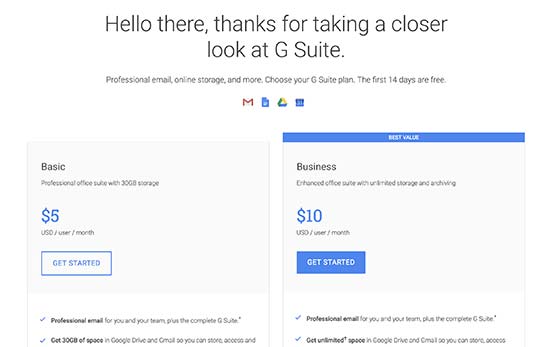
G Suite basic plan costs $5 per user each month. It gives you access to Gmail, Docs, Drive, Calendar, and audio/video conferencing with 30 GB of cloud storage for each user.
You will also need a domain name, which you can purchase during the signup. If you already have a domain name and a website, then you can use your existing domain with G Suite.
To get started, simply visit the G Suite websiteand click on the get started button.
On the next screen, you will be asked to enter your business name, the number of employees, and country where you are located. You can choose just yourself for 1 user account, or choose the number of employees.
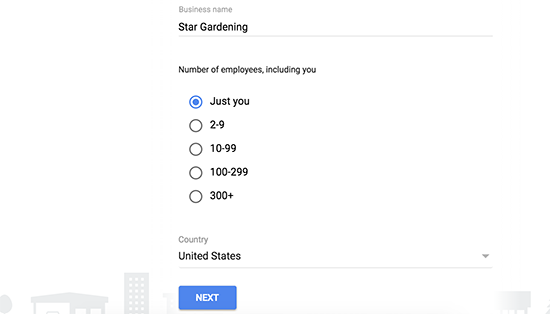
Note: You will be charged for each user account, so it is better to start small. You can always add more users when needed.
Click on the next button to continue.
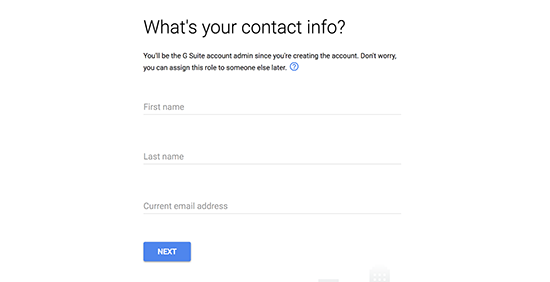
On the next step, you will be asked to enter your personal contact information including name and email address.
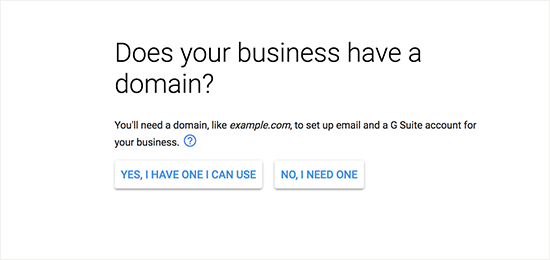
After that, you will be asked to choose a domain name. If you already have a domain name, then click on ‘Yes I have one I can use’.
If you don’t have a domain, then click on ‘No, I need one’ to register a domain name.
If you need to register a new domain name, then you will be charged separately for registering a new domain name. The cost of a domain name will be displayed on the screen and usually starts from $14.99.
If you are using an existing domain name, then you will need to verify that you own that domain name. We will show you how to do that later in this article.
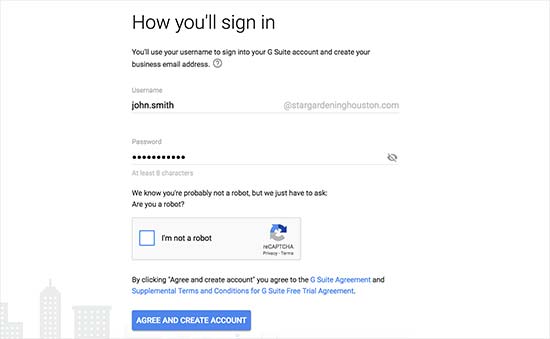
After choosing your domain name, you will be asked to create your user account by entering a username and password.
z
This username will also be your first business email address, so you need to choose a username that you want to use as your business email address.
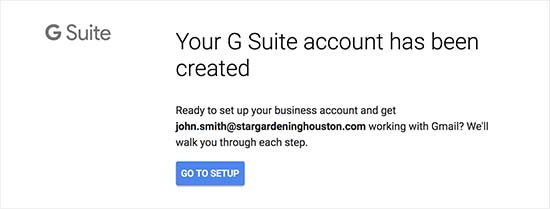
After that, you will see a success message and a button to continue with the setup.
Step 2. Setting up Business Email with G Suite
In this step, you will complete the G Suite setup by adding users and connecting it to your website or domain name.
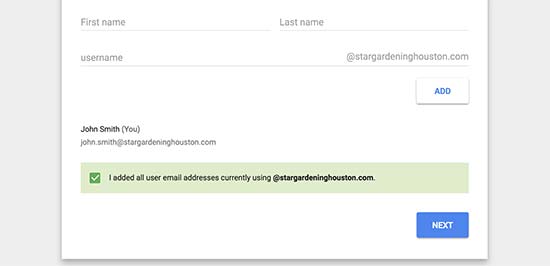
On the setup screen, you will be asked to add more people to your account. If you want to create more accounts for your employees or departments, then you can do that here.
You can also just click on ‘I have added all user email addresses’ and click on the next button.
Remember, you can always add more users to your account and create their email addresses later when needed.
If you are using G Suite with an existing domain name, then you will be asked to verify that you own that domain name. To do that, you will now see a HTML code snippet that you need to add to your website.
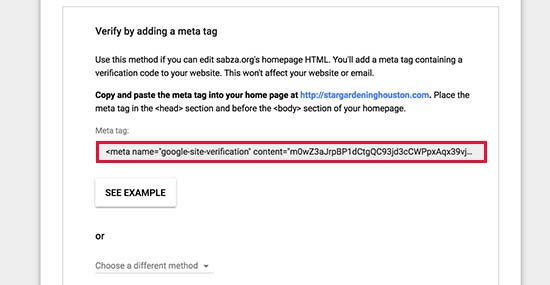
There are other ways to verify your ownership as well. You can upload a HTML file to your website using an FTP client or file manager app in your hosting account dashboard.
If you don’t have a website, then you can use the MX Record method to verify your ownership of the domain name. You will see step by step instructions to do that once you choose this method.
For the sake of this article, we are assuming that you already have a WordPress website, and we will show you how to add the verification HTML code snippet in WordPress.
First, go to the admin area of your WordPress website to install and activate the Insert Headers and Footer plugin. For more details, see our step by step guide on how to install a WordPress plugin.
Upon activation, go to Settings » Insert Headers and Footer page and paste the HTML code you copied from G Suite under the ‘Scripts in Header’ section.
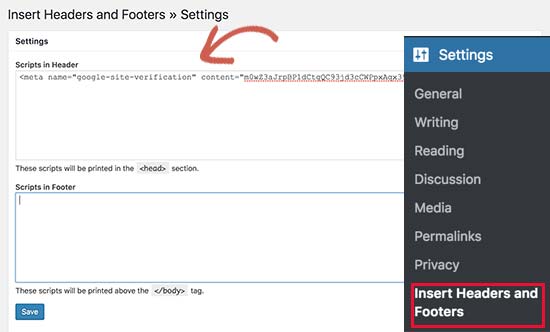
Don’t forget to click on the ‘Save’ button to store your settings.
Now switch back to your G Suite setup screen and click on the checkbox that says ‘I added the meta tag to my homepage’.
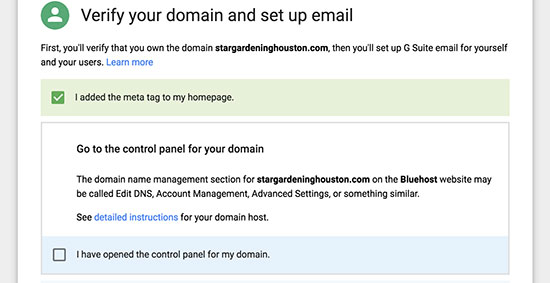
After that, you will be asked to enter MX record entries for your domain name. We will show you how to do that in the next step.
Step 3. Adding Domain MX Records
Note: This section is for users with existing domain names and websites. If you registered a new domain name via Google, then you don’t need to read this.
Domain names tell internet servers where to look for information. Since your domain name is not registered with Google, your emails will reach your domain name, but not to the Google servers.
You will need to setup the right MX records on your domain name settings, so Google’s servers can send and receive emails for your business.
Comments
Post a Comment